Knowledge/People
Save LinkedIn profiles from Chrome
Install the OmniReach side panel, open a LinkedIn profile or people search, and save to Contacts, a list, or a campaign without leaving the tab.
·Updated ·4 min read
The Chrome extension is for capturing people while you browse LinkedIn. It does not send connection requests or messages from the page. Sending still happens in OmniReach, after review, through a connected sender.
CSV, lists, Signals, and the campaign loop are in Launch your first campaign. Apollo is Import people from Apollo. For email lookup and one-off actions, continue to Find work emails and take action from Chrome.
What you will have at the end
- The open profile (or a short batch from the page) in Contacts
- Optional list membership and campaign enrollment from the same save
- Duplicate and do-not-contact checks before anything is written
You will not get LinkedIn automation, feed scraping, or a second inbox inside Chrome.
1. Install and pin
Install OmniReach: LinkedIn Lead & Contact Saver from the Chrome Web Store. Pin it next to the address bar so the side panel is easy to find.
Open the panel from the toolbar (Chrome’s native side panel, beside LinkedIn). It does not inject buttons onto the LinkedIn page.
This is separate from connecting LinkedIn as a sender on Accounts. The extension only reads public fields from the tab you have open.
2. Sign in
On a LinkedIn profile, the panel says Save to OmniReach. Click Sign in to OmniReach. A tab opens where you continue with Google or email — the same account as the website.
If the panel does not unlock after you finish, click I signed in.
If you belong to more than one workspace, the header is a workspace picker. Every save lands in the workspace showing there.
Saving is paused while your subscription is inactive. The footer then says Subscribe to save contacts.
3. Save one profile
Open a LinkedIn profile (linkedin.com/in/…). The panel parses name, role, company, and URL.
- Check Contact details. Edit anything the page got wrong. Optional email and note stay in a local draft if you switch tabs.
- Under Save destination, pick a List (or Contacts only) and optionally a Campaign. You can create a list from the picker.
- Click Save [first name].
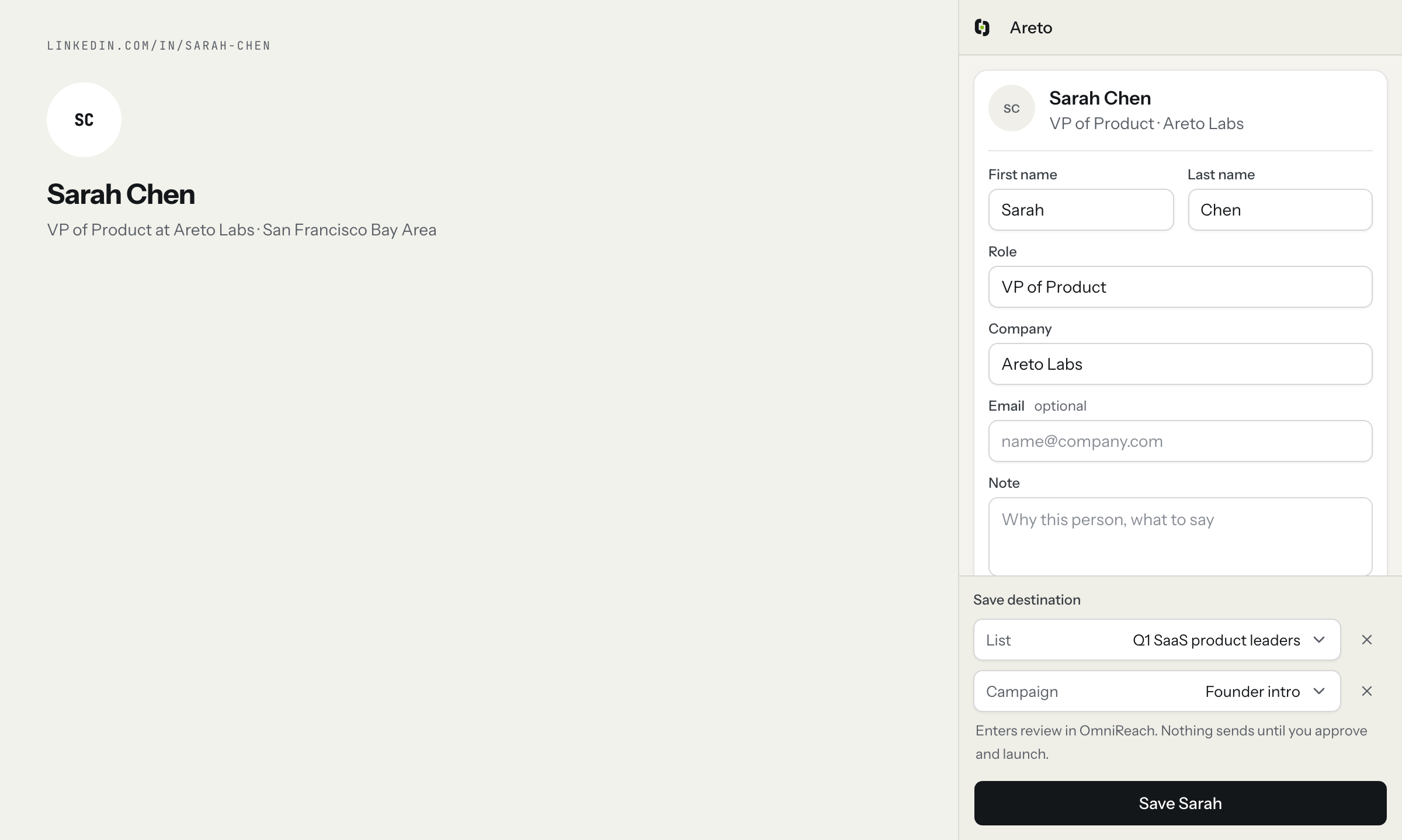
Chrome side panel on a LinkedIn profile: Contact details, Save destination, and Save Sarah.
After save, the footer shows Saved to that list (or Contacts) with View prospect.
Your own profile is refused: This is your LinkedIn profile. Save someone you want to reach instead. Anonymised or incomplete pages show This profile does not show a name we can save. Off LinkedIn, the empty state is Open a LinkedIn profile.
Inbox provenance for these people is Chrome extension.
4. Save several people from the page
On a profile, LinkedIn often lists others (People on this page). Switch to that tab, tick the rows you want, set destination, and save. Already-saved rows are marked and not ticked again.
On a LinkedIn people search (/search/results/people/), the panel is the result list. Tick, choose destination, save.
One save is capped at 25 people. The extension does not paginate, scroll, or click LinkedIn for you — only the rows on the open page.
Rows the server will not write stay on the list with a reason, not a retry:
- Already saved / In campaign / Replied
- On your do-not-contact list
- Not a LinkedIn profile link
- Selected twice
- Nothing usable to save
5. Campaigns: draft vs SENDS NOW
List and campaign are optional attributes of the same save.
- Draft or paused campaign: they enter review. Nothing sends until you Hold to launch. Same rule as Launch your first campaign.
- Running campaign: the picker shows SENDS NOW. The helper says this campaign is running; saving starts sending to them right away.
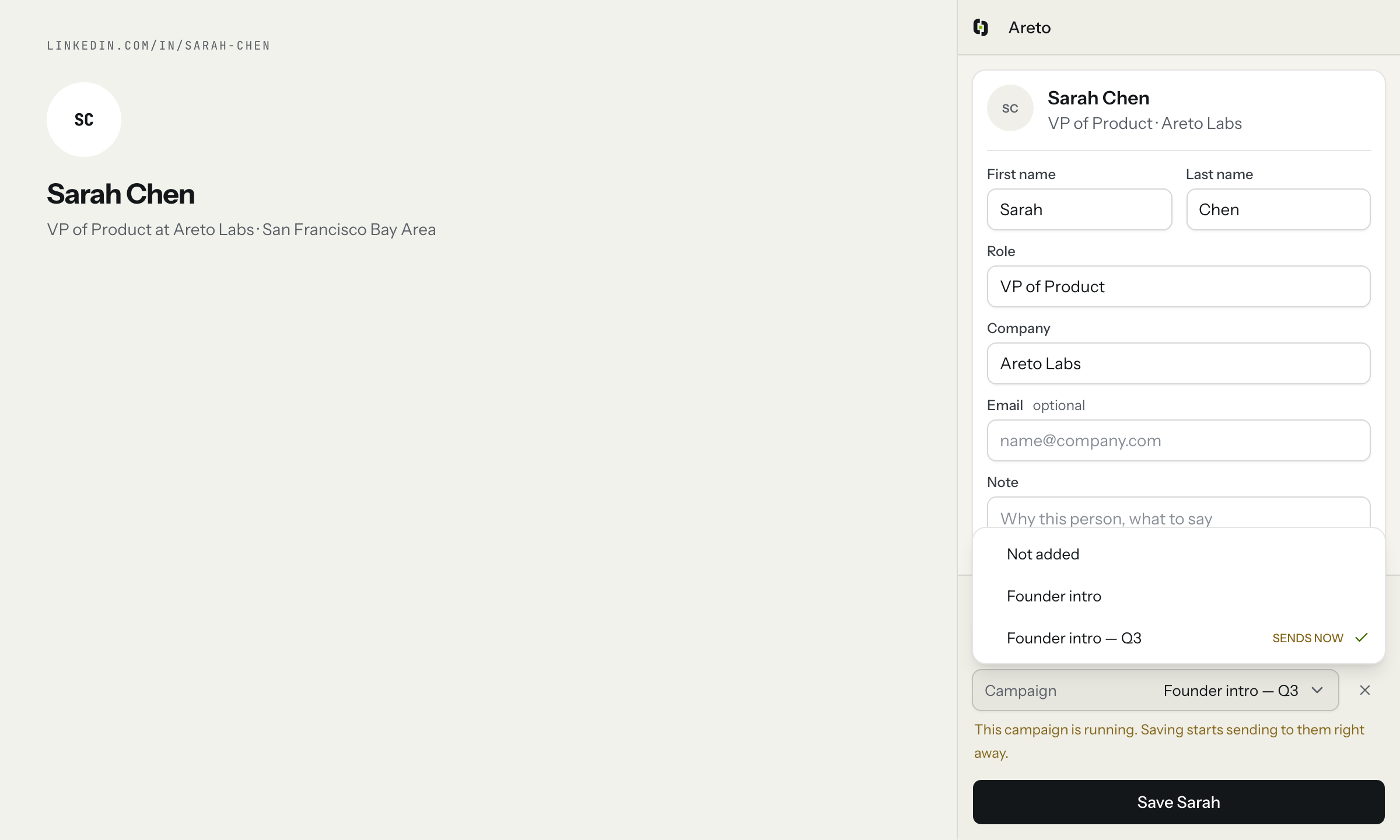
Campaign picker on a running campaign. SENDS NOW is on the row; saving starts sending right away.
On do-not-contact, Campaign shows Blocked and enrollment is unavailable. Skip on Review is campaign-only; DNC is workspace-wide.
What it does not do
- It does not click Connect, send messages, or view profiles on your behalf from LinkedIn.
- It does not read DMs, the feed, or pages you are not looking at.
Daily caps, warm-up, and Hold to launch still apply once someone is in a campaign. See Safety.
Gotchas
- Pin the extension. Chrome hides unpinned side panels.
- Wrong workspace in the header → the save goes there. Check before you click Save.
- A running campaign with SENDS NOW is a real send, paced to the account — not a draft.
- People search only captures visible rows. It will not walk the rest of the result set.
- Subscription paused → Subscribe to save contacts; nothing is written.
The campaign loop (playbook, flags, Hold to launch, replies) is Launch your first campaign. Email lookup and one-off actions are in Find work emails and take action from Chrome. Apollo lists and LinkedIn tasks are Import people from Apollo.
Open in the app
People from LinkedIn in your workspace, saved from the page you are on
Open the matching screen in OmniReach.
Related how-tos