Knowledge/People
Find work emails and take action from Chrome
Reveal a work email, then queue a connection request or email from the OmniReach side panel while you are still on the LinkedIn profile.
·Updated ·5 min read
Save LinkedIn profiles from Chrome covers installation, sign-in, workspaces, and the basic save flow. Once that is working, you can use the same side panel to find a work email or queue a connection request or email.
The extension does not click buttons on LinkedIn or send from the browser tab. It adds the action to OmniReach, where the selected sender's pacing, daily caps, and send window still apply.
What you will have at the end
- A work email in the open profile, when OmniReach can find one
- A contact saved to Contacts, unless they were already there
- One connection request or email in the correct sender's queue
- A record of that action on Actions
Nothing sends immediately. The extension also cannot message an unverified connection or override workspace suppression.
Before you start
- Install and sign in to the Chrome extension
- Open a public LinkedIn profile (
linkedin.com/in/…) - Connect a LinkedIn sender for Connect
- Connect a mailbox and find or enter an email address for Email
Your workspace must be allowed to send. An inactive subscription leaves the panel read-only.
Find email and Email actions are part of the Full suite plan. On Engagement, the side panel saves profiles and queues LinkedIn actions; the email controls show a Full suite lock.
1. Find the work email
Open Contact details in the side panel. When the Email field is empty and the profile has a usable LinkedIn URL, click Find email.
The result appears in the Email field. OmniReach charges one enrichment credit only when it finds an address, using the same monthly credit pool as Signals. If the lookup fails, the field stays empty.
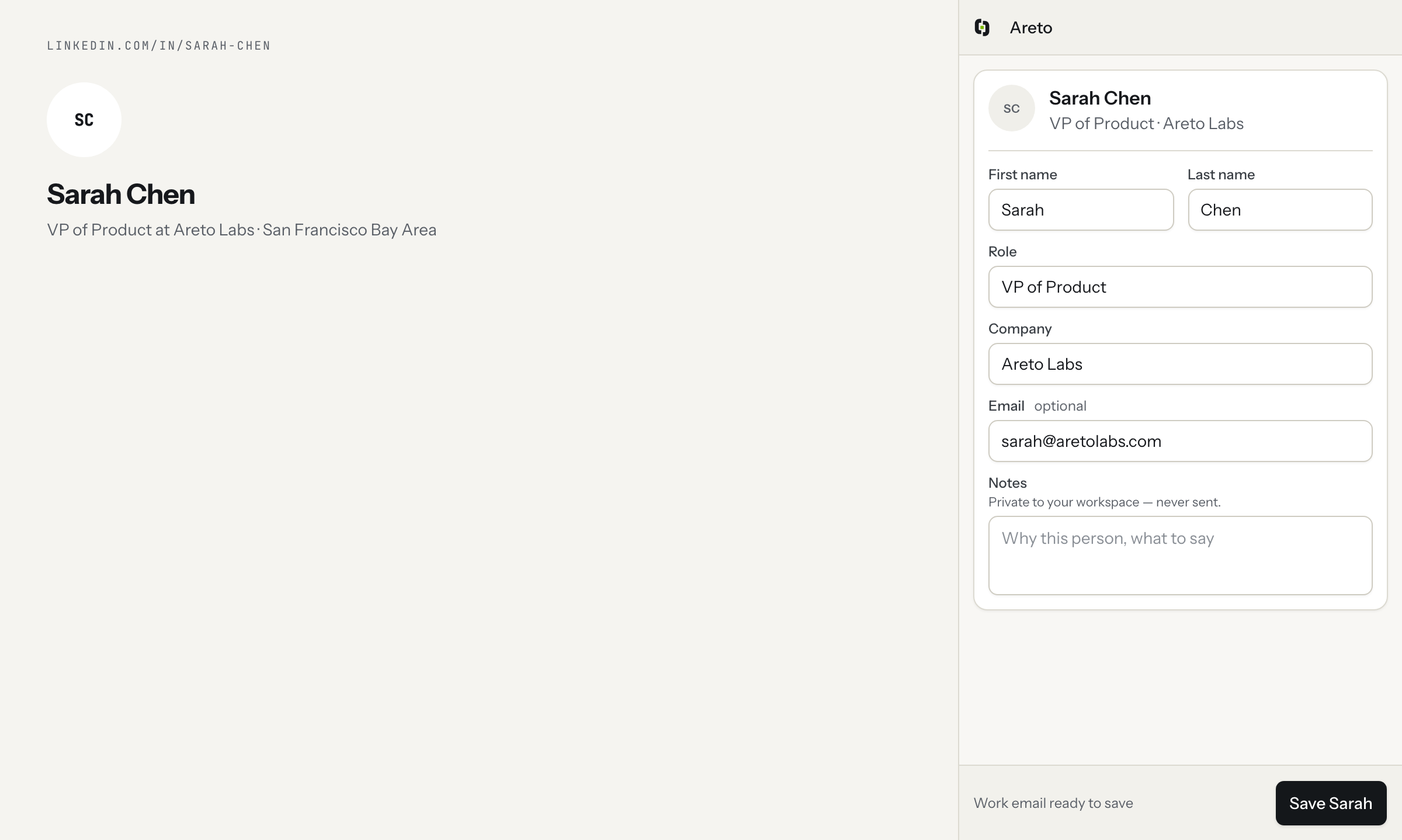
Find email fills the contact field in the side panel. Save the profile to keep the result.
Check the address before saving. If you know a better one, replace it in the field. The lookup only updates the form. Click Save [first name] to save the contact without queuing an action.
2. Open Take action
Below the profile card, open Take action. The extension offers:
| Action | What you need | What gets queued |
|---|---|---|
| Connect | A connected LinkedIn sender | A connection request, with an optional note |
| A connected mailbox and an email address | An email with a subject and body |
Follow and post reactions are not in the panel because those controls are already on the LinkedIn page. LinkedIn Message is also absent until the extension can reliably tell whether someone is a first-degree connection.
You can choose an action before saving the profile. OmniReach first saves the person to Contacts, checks whether the action is allowed, and then adds it to the queue. Before you commit, the panel says This person will be saved to Contacts first.
3. Queue a connection request
Choose Connect.
- Pick the LinkedIn sender if the workspace has more than one.
- Add a connection note if you want one. LinkedIn limits it to 300 characters.
- Choose Add to queue or Send next.
You can leave the note blank. If you write one, keep it short and specific rather than trying to use all 300 characters.
4. Queue an email
Choose Email.
- Check the email address in Contact details.
- Pick a mailbox if more than one is connected.
- Write the subject and body. Both fields are required.
- Choose Add to queue or Send next.
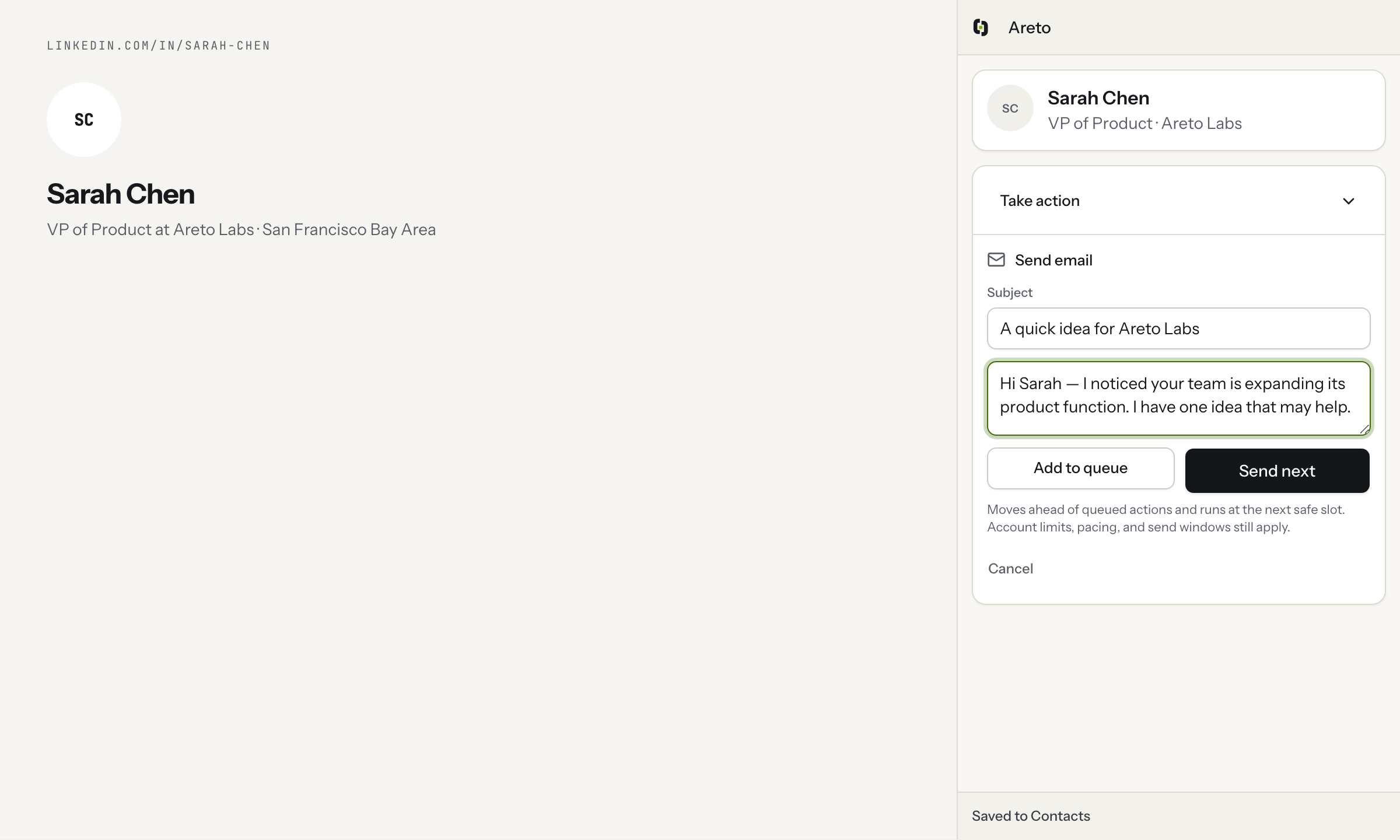
The composer is where you review the email. Send next changes its queue position but does not bypass safety controls.
Choosing a one-off action does not add the person to the campaign shown under Save destination. That happens only when you click the main Save button.
5. Choose Add to queue or Send next
- Add to queue joins the sender's normal queue and runs at its next safe account slot.
- Send next moves ahead of other queued actions and runs at the next safe slot.
Send next does not mean send now. Account limits, pacing, warm-up, and send windows still apply. The confirmation tells you that the action joined or moved within the queue. It never claims the action was sent.
Open Actions in OmniReach to see what is waiting, scheduled, completed, or blocked.
When an action is unavailable
When OmniReach knows an action cannot run, its row shows why. Common reasons include:
- No LinkedIn sender is connected
- No mailbox is connected
- Email is missing
- The person is already connected or has an invite in progress
- The person is on the workspace do-not-contact list
- The workspace is read-only
Take action is hidden for suppressed contacts. DNC applies across the workspace, so review it through the suppression list in Settings.
Gotchas
- Find email uses one credit only when it finds an address. That credit comes from the same pool as Signals. Find email and Email actions need the Full suite plan.
- OmniReach saves an unsaved person before queuing a one-off action.
- Send next changes priority, not the safety rules.
- Only the main Save button applies the campaign chosen in Save destination.
- Connection notes cannot exceed 300 characters.
- An email needs both a subject and a body.
- After a failed request, a retry uses the same idempotency key and does not create a second send.
For batch saves, campaign enrollment, and the SENDS NOW marker, return to Save LinkedIn profiles from Chrome. For campaign pacing and review, read Launch your first campaign.
Open in the app
A saved contact with a verified work email or a one-off action in the safe sending queue
Open the matching screen in OmniReach.
Related how-tos