Knowledge/People
Import people from Apollo
Connect Apollo with one API key, import contacts or a list, and pull LinkedIn tasks into Actions. Imports wait for your review; they do not send on their own.
·Updated ·5 min read
Apollo is a source, not a second sequencer. You import people (and optional LinkedIn tasks) into OmniReach, then review and send here.
CSV, lists, Signals, and LinkedIn search are in Launch your first campaign. Saving someone while you browse LinkedIn is Save LinkedIn profiles from Chrome.
What you will have at the end
- Contacts from Apollo in OmniReach, keyed by LinkedIn URL
- Optional enrollment into a default campaign, still waiting for Hold to launch
- Open LinkedIn tasks on Actions, scheduled onto a connected sender
You do not get a two-way CRM, email-task sync, or InMail sends from OmniReach.
Before you start
- An Apollo workspace you already use
- Permission to manage integrations in OmniReach (owners and admins; members cannot open Settings → Apollo)
- A LinkedIn sender in OmniReach if you want tasks to run (contacts can import without one)
1. Connect with an API key
Open Settings → Apollo.
- In Apollo, create a key under Settings → Integrations → API.
- Tick the required scopes, or toggle Set as master key.
- Paste the key and click Connect Apollo.
The key is validated before save, stored encrypted, and never shown again. If a scope is missing, connect fails with a 403 that names the endpoint.
Required scopes (as shown on the page):
api/v1/users/api_profile— key validationapi/v1/contacts/search— contacts syncapi/v1/tasks/search— tasks syncapi/v1/tasks/complete— complete write-backapi/v1/tasks/skip— skip write-backapi/v1/labels/index— lists picker
Needs attention later? Open Update API key and paste a new one. Disconnect removes the saved key and cancels pending task actions.
2. Import contacts
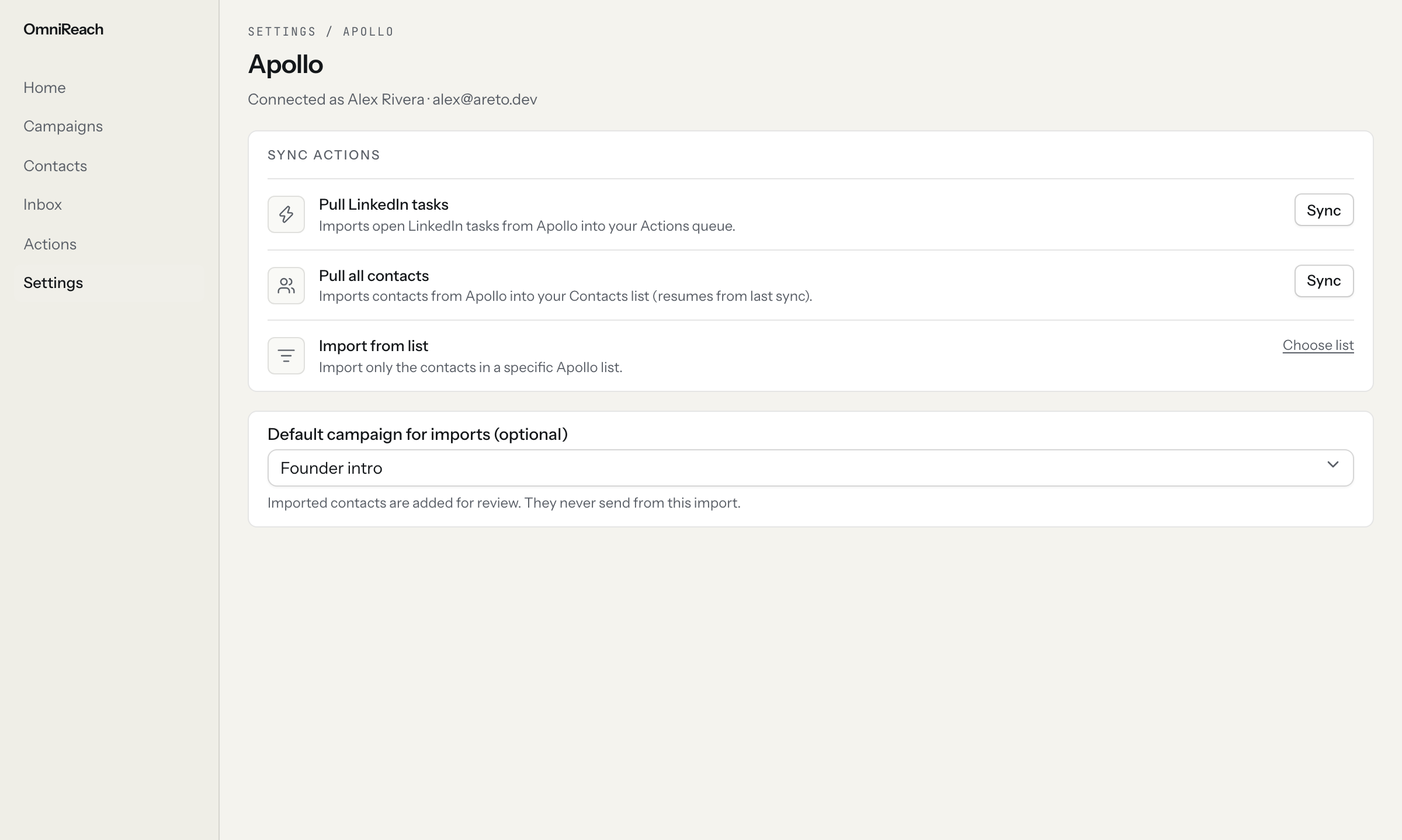
Settings → Apollo after connect: Pull LinkedIn tasks, Pull all contacts, Import from list, and Default campaign for imports.
On Settings → Apollo, under Sync actions:
- Pull all contacts — incremental import into Contacts. It resumes from the last successful cursor, so a large Apollo database drains across runs instead of dumping everything at once. Default cap is 2,000 contacts per run.
- Import from list — Choose list, pick an Apollo contact list, Import. List imports start from the beginning of that list, not the workspace cursor.
A LinkedIn URL is required. Rows without one are skipped. Email, title, and company fill blanks; OmniReach does not overwrite a field you already filled. Conflicts stay on the contact for you to review.
Inbox provenance for these people is Apollo.
3. Optional: default campaign
Under Import settings, pick Default campaign for imports. Leave it on Contacts only — no enrollment if you only want the roster.
When a campaign is set, imported contacts are added to it and flagged for review. They never send from this import. Hold to launch is still the gate. See Launch your first campaign.
This is different from the Chrome extension: saving into a running campaign from the side panel can start sending immediately. Apollo imports do not.
4. Pull LinkedIn tasks into Actions
Pull LinkedIn tasks imports open LinkedIn tasks from Apollo into the Actions ledger. The same control exists on Actions as Sync Apollo tasks.
What syncs:
| Apollo task | Actions label | Runs in OmniReach? |
|---|---|---|
| Connect | Connect on LinkedIn | Yes |
| Message | LinkedIn message | Yes, if the message copy is filled |
| View profile | View profile on LinkedIn | Yes |
| Interact with post | Like a post on LinkedIn | Yes |
| Follow | Follow on LinkedIn | Yes |
| InMail | InMail | No — complete this task in Apollo |
Email tasks and closed/skipped Apollo tasks are not imported. A message task with no copy stays blocked: add the message in Apollo, then sync again.
Importing a task also creates or updates the contact when the task has a LinkedIn URL.
5. Schedule so they actually run
Pulling is not sending. Unscheduled tasks wait until you click Schedule Apollo tasks on Actions.
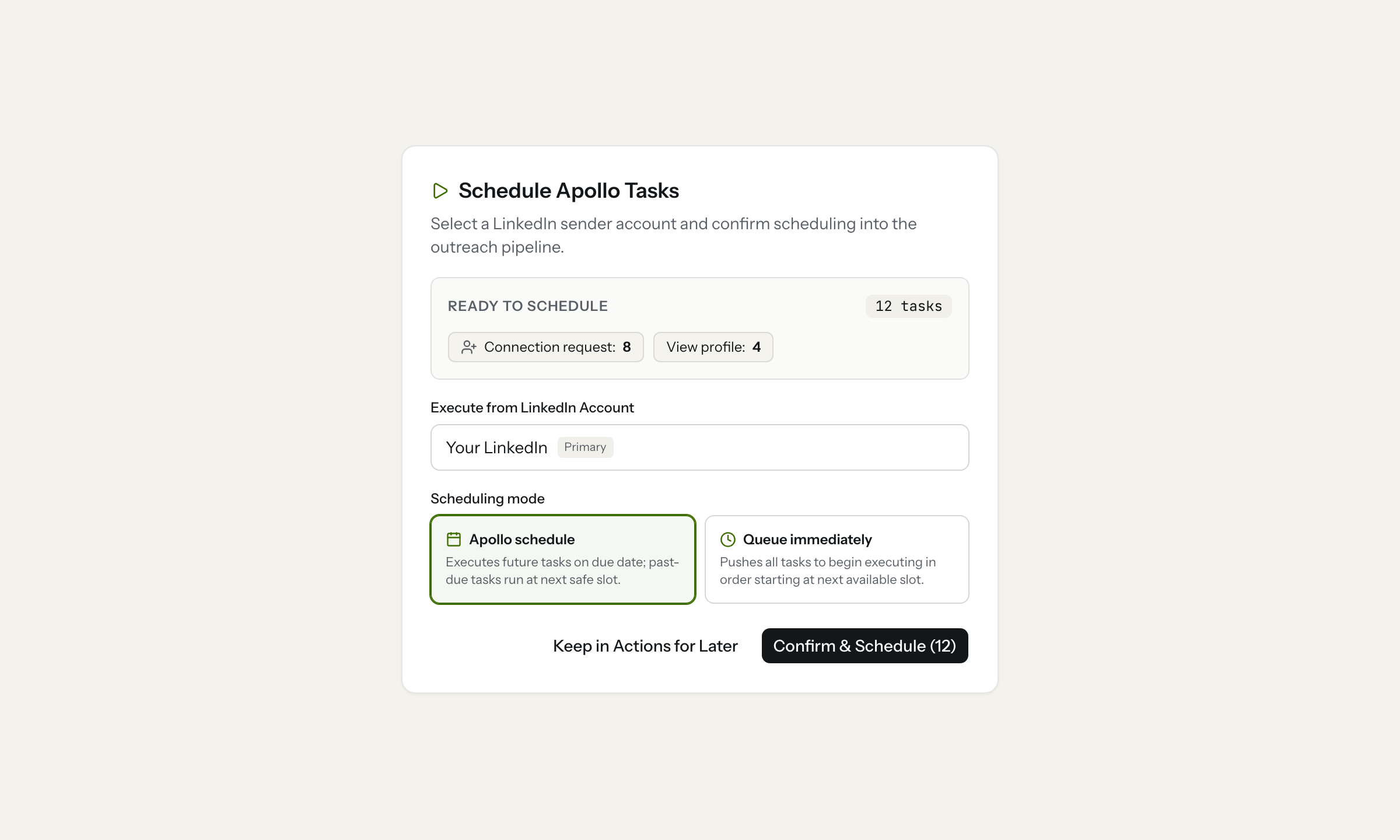
Schedule Apollo Tasks: pick Execute from LinkedIn Account, then Apollo schedule or Queue immediately.
- Connect at least one LinkedIn account (otherwise the dialog says No LinkedIn account connected).
- Pick Execute from LinkedIn Account.
- Choose a scheduling mode:
- Apollo schedule — future tasks keep their due date; past-due tasks run at the next safe slot
- Queue immediately — all tasks start from the next available slot, still paced to the sender’s cap
Tasks missing copy or not supported stay in Waiting. Daily caps and warm-up still apply. See Safety.
When a send completes, OmniReach writes complete back to Apollo. Skip on Actions is written back too, and there is no undo — Apollo treats skip as final.
6. Automatic sync (optional)
Under Automatic sync:
- Import contacts — once a day into Contacts
- Pull LinkedIn tasks into Actions — once a day
Pick Run each day: Morning (9:00 AM), Afternoon (2:00 PM), or Evening (7:00 PM) in the workspace timezone (detected from your device; Change if needed).
Manual syncs on this page always work, even with automatic sync off.
Gotchas
- No LinkedIn URL → contact is skipped. Fix the URL in Apollo, then sync again.
- Fill-blanks only. Apollo will not clobber a name, email, or company you already edited in OmniReach.
- Default campaign enrolls for review. It does not Hold to launch for you.
- InMail cannot be sent from OmniReach yet.
- Skip on an Apollo task is final in Apollo.
- Disconnecting Apollo cancels pending task actions.
CSV, Signals, review, and replies are in Launch your first campaign.
Open in the app
Apollo contacts in OmniReach; LinkedIn tasks on the Actions ledger
Open the matching screen in OmniReach.
Related how-tos