Knowledge/Getting started
Launch your first campaign
From signup to Hold to launch: connect LinkedIn, keep the goal playbook, add a short list, fix flags, then send. Replies land in Inbox and stop the sequence.
·Updated ·10 min read
Same loop as the empty Home screen, written out: find people, fix flags, hold to launch, handle replies. Read How it works for the product story. Saving from LinkedIn is Save LinkedIn profiles from Chrome. Apollo lists and tasks are Import people from Apollo. To let an agent prepare and start the same workflow, read Run an outbound campaign with OmniReach MCP.
What you will have at the end
- One campaign bound to a single LinkedIn sender
- A short roster you chose (or enrolled later)
- A goal playbook on Sequence, not a blank canvas
- First connection notes reviewed; nothing sent until Hold to launch
- Replies in Inbox, with the sequence already stopped
You do not need a custom graph, a second sender, or a Signals program for this pass.
Before you start
- A LinkedIn account you are willing to send from
- A short list (about 10–30 people you would actually message)
For safe daily volume, read LinkedIn connection request limits. Do not jump from zero to a high invite count overnight. OmniReach caps below common published invite figures on purpose.
1. Onboarding: Website → Confirm → Connect
- Paste your website and let OmniReach read what you sell and who you sell to. You can skip the site read if you need to move on.
- On Confirm, pick a goal: Start conversations, Book demos, Recruit, or Network. Check the ICP and signal chips so targeting matches how you sell.
- On Connect, click Connect. You are redirected to a hosted LinkedIn login. 2FA and captcha happen there, not inside OmniReach. There is no in-app password form.
Nothing sends during onboarding. First touches still wait for Hold to launch.
If Senders later shows Needs attention, Connect again to reconnect. Reconnect uses the same hosted flow.
2. Create the campaign
- Open Campaigns and create a new campaign (or use Create your first campaign on Home).
- Name it and pick send-from. That sender is bound for the life of the campaign. You cannot swap accounts later.
- Keep the goal playbook that prefills Sequence. You should recognize one of: Founder intro, Book a demo, Recruiter reach-out, or Light network.
You can create the campaign with zero people and enroll after launch. An empty playbook cannot go live. Multi-sender workspaces must pick senders, or you see Choose at least one sender before launch.
3. Sequence: keep the playbook, or add email
The playbook is enough for a first launch. Open the canvas when you need branching, or when you want Connect, then email.
Email steps and mailboxes are part of the Full suite plan. On Engagement, the canvas shows the Email step with a Full suite lock, and a campaign with email steps can't launch until the workspace switches plans.
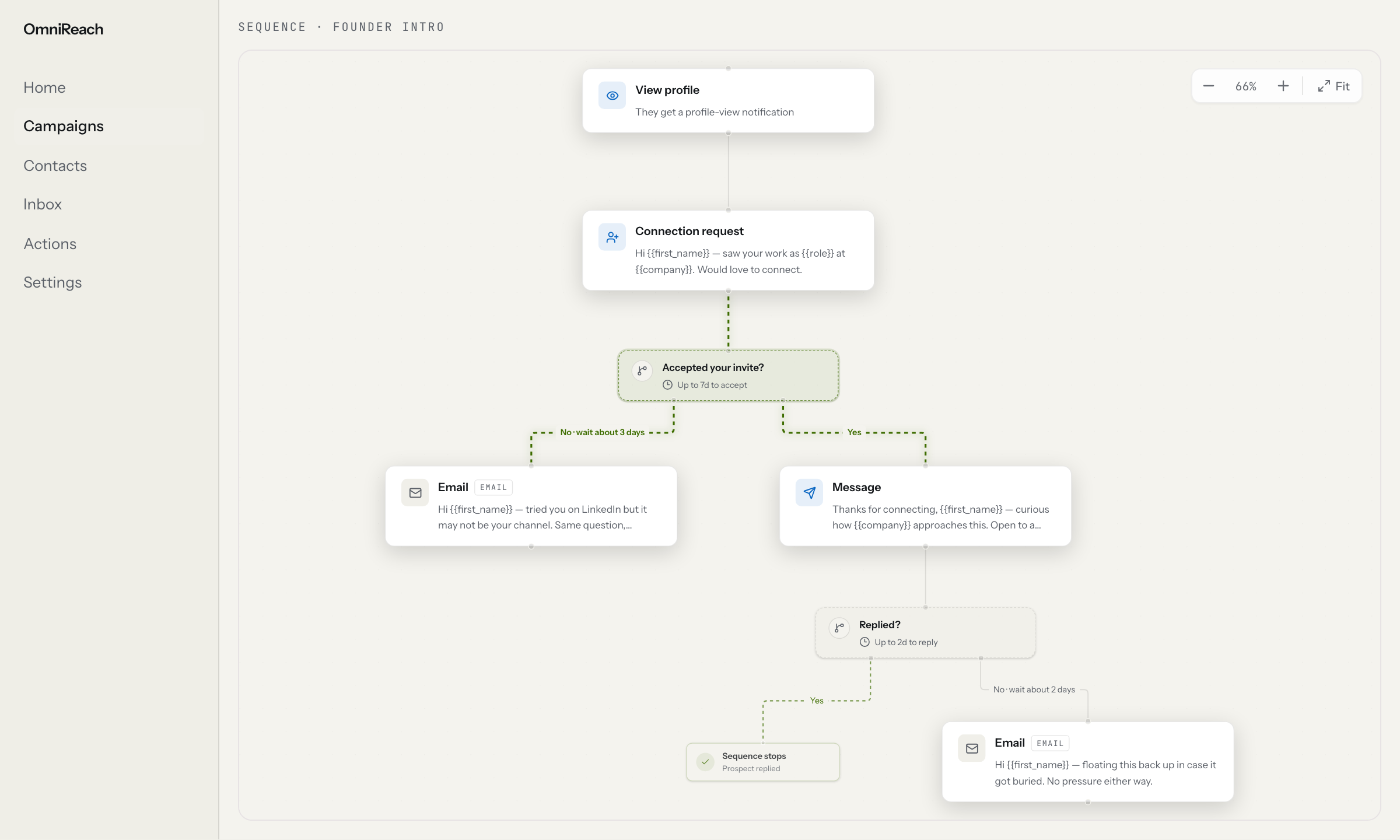
Sequence canvas: View profile, Connection request, then Accepted your invite? with a 7-day wait before Message or Email.
LinkedIn packs: Founder intro, Book a demo, Recruiter reach-out, Light network.
Graph packs: Connect, then email; Demo, then email; Recruit, then email.
Connect, then email path: View profile → Connection request → wait (default 7 days) on Accepted your invite? → Yes: Message on LinkedIn / No: Email. That email branch is how you keep talking when the weekly invite cap is hit. Connect a mailbox on Senders → Email (/accounts/email) or the email branch will not send. Confirm Message and Email copy are filled before launch.
| Canvas label | What happens |
|---|---|
| View profile | They can get a "viewed your profile" notification. Also how we turn /in/slug into an internal id. |
| Follow | Follows their LinkedIn profile. |
| Like post / Comment on post | Latest eligible post. Comment defaults to Held for per-prospect review. |
| Connection request | Optional note, 300 characters. No note is valid. Already a connection → skip the invite. |
| Message | Only starts a chat with a relation. No invite upstream → Won’t run yet. |
| Needs an address and a mailbox. No address → skipped. |
Accepted your invite? can lag hours (LinkedIn does not push accepts), which is why the wait is days, not minutes. Has an email address? is checked immediately. Replied? Yes is a terminal: Sequence stops / Prospect replied.
InMail is not a canvas node. Playbooks carry InMail copy. After an invite, if they have not accepted by the wait window, we may send InMail when the sender has Premium, Sales Navigator, or Recruiter credits, or when the profile is Open (free). Accept cancels it. No credits and not open → skip.
Launch needs a runnable step (View profile, Follow, Like, Comment, or Connection request). Message-only graphs never enable Hold to launch.
Variables: {{first_name}}, {{company}}, {{role}}, {{sender.signature}}. Empty fields become empty strings, then flags on Review. Drafts: Personalization. Graph model: Sequences.
4. Add people
On the campaign, open Add people. For a first pass use Contacts or Upload CSV.
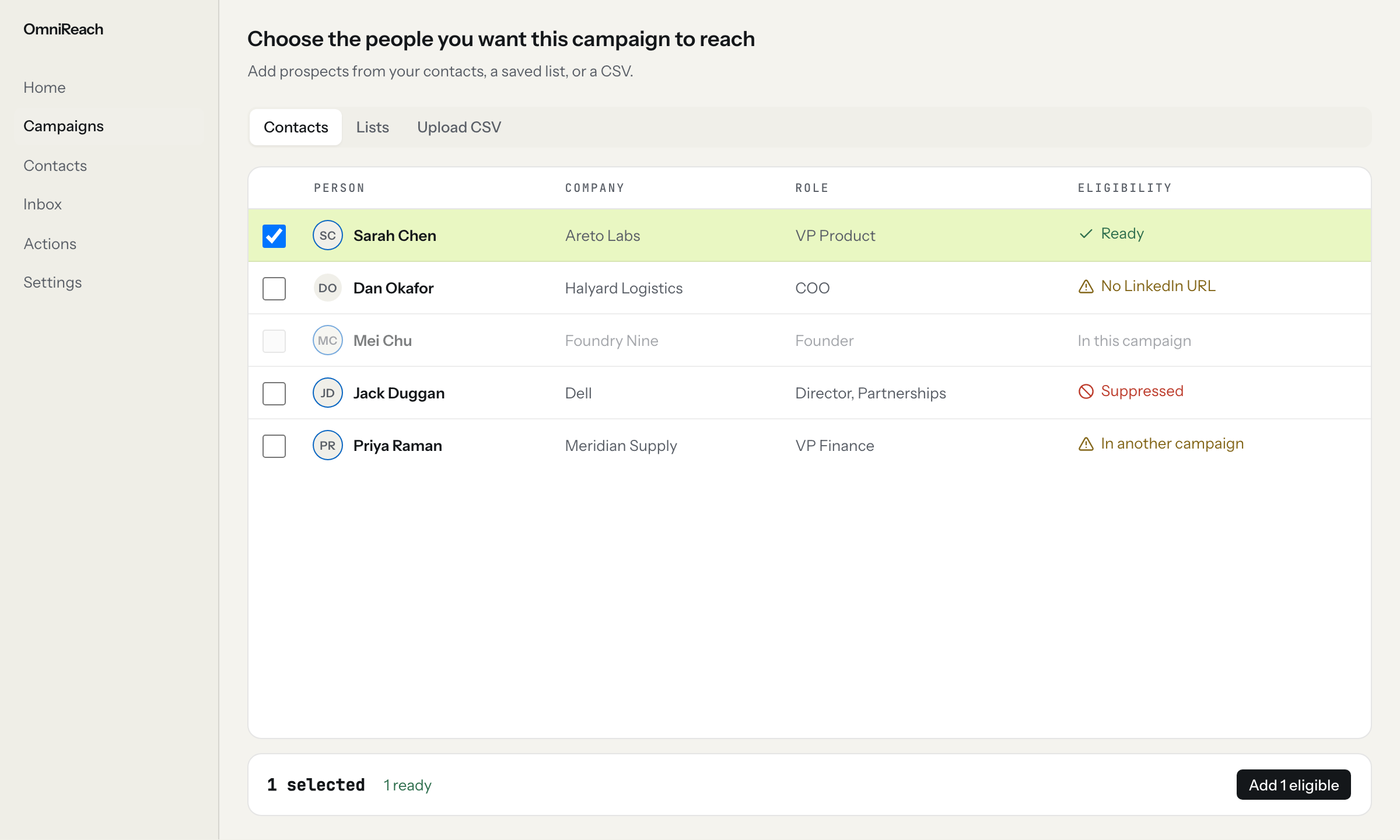
Add people from Contacts. Eligibility shows Ready, No LinkedIn URL, In this campaign, Suppressed, and In another campaign.
A LinkedIn URL is what makes a row launchable. Email matters only if the sequence has an Email step. Keep the list short.
| Source | When to use it |
|---|---|
| Contacts | People already in the workspace |
| Lists | Saved slices you reuse |
| Upload CSV | A list you already believe in. First-campaign default. |
| From LinkedIn search | Paste a search URL; we pull results through the connected account. Keep it short — you cannot invite faster than the weekly cap, and a query only returns the first ~1,000 classic / ~2,500 Sales Navigator rows. |
| Signals | Buying-signal recommendations with score and evidence. Beta. Save, list, enroll, or dismiss. |
| Chrome extension | Save the open profile or people on the page. Save LinkedIn profiles from Chrome. |
| Apollo | Import contacts or a list, and pull LinkedIn tasks into Actions. Import people from Apollo. |
| MCP | Let an agent find or push people, create a draft, and start it through the preview flow. Run an outbound campaign with OmniReach MCP. |
Eligibility chips when adding: Ready, In this campaign, Suppressed, No LinkedIn URL, In another campaign, Missing ….
On a live campaign, Add people is a right sheet. Clean rows auto-approve; Hold to launch from the sheet. Open Review only for flags. Adding later does not dump you through a wizard for every clean row.
Inbox can show provenance: Signals, CSV, LinkedIn search, Chrome extension, Apollo, or MCP.
5. Review flags, then Hold to launch
Review is exception handling. Clean rows are already in the send pool. You do not tick every person. Flagged people get a one-at-a-time card: fix or skip.
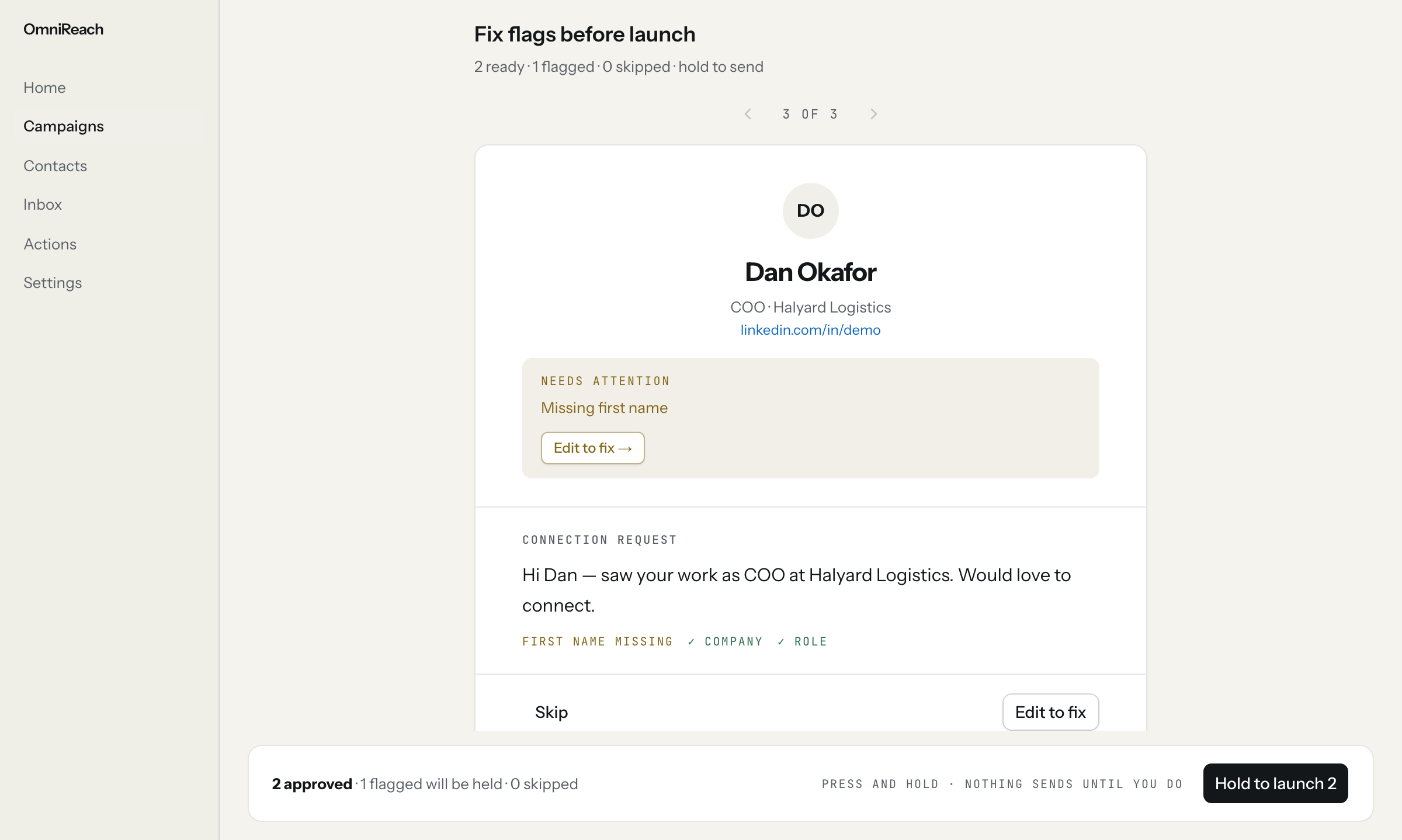
Review card for a flagged person, with Hold to launch on the bar underneath. Nothing sends until you hold.
Launch needs all of:
- At least one clean row (unflagged, not skipped)
- A runnable sequence step (not Message-only)
- At least one sender
- Remaining invite capacity
The button is Hold to launch (about 400ms; releasing early cancels). The label looks like Hold to launch N. It is not a confirm dialog. Nothing sends without that hold. See Safety.
Disabled CTAs and toasts you may see:
- Add people to launch
- Blocked — campaigns need at least one eligible prospect before launch.
- Connect LinkedIn before launch
- Choose at least one sender before launch
- Invite cap reached for today or this week
- Daily cap reached. Approved prospects stay scheduled.
- Launch from review before pausing.
| Flag | What to do |
|---|---|
| Missing URL | Add a LinkedIn URL or skip |
| Duplicate | Same profile twice in this campaign; skip one |
| Invalid email | Fix or clear; blocks Email steps |
| On DNC list | Workspace suppression. Remove from DNC or skip. Do not force send. |
| AI draft pending / AI draft failed | Wait, or write the note yourself |
| Missing first name / company / role | Template uses {{first_name}}, {{company}}, or {{role}} and the field is empty. Fill or edit the note. |
| Over 300 characters | Connection notes cap at 300 |
Skip excludes them from this campaign. It is not workspace do-not-contact. DNC comes from Inbox Not interested or Settings → Suppression list (/settings/dnc). Restore brings a skipped row back into this campaign; it does not clear workspace DNC.
A public /in/slug is not enough to invite. We retrieve the profile first. That counts toward the daily profile-visit budget, shared with View profile steps. Connection notes count against a tighter LinkedIn ceiling on free accounts; Connection request · no note is the quieter option on young accounts.
6. After launch
Invites pace to the account’s daily cap and warm-up ramp on Senders (Gradual ramp up). Home shows attention rows: REVIEW, READY, HELD, INBOX. Pause anytime from the campaign overview.
Pending OmniReach invites older than 21 days are withdrawn overnight so the pending pile does not look automated. Personal invites you sent outside OmniReach are left alone.
If nothing is sending, check in order: daily cap or warm-up still ramping; campaign paused; waiting for invite accept (hours, not instant); Invite cap reached… and we rescheduled; failed actions on /actions?status=failed (retry, skip, or archive).
7. Replies stop the sequence
A LinkedIn or email reply lands in Inbox and follow-ups do not fire. There is no pause-on-reply toggle; stop-on-reply is the default. Overview: Inbox.
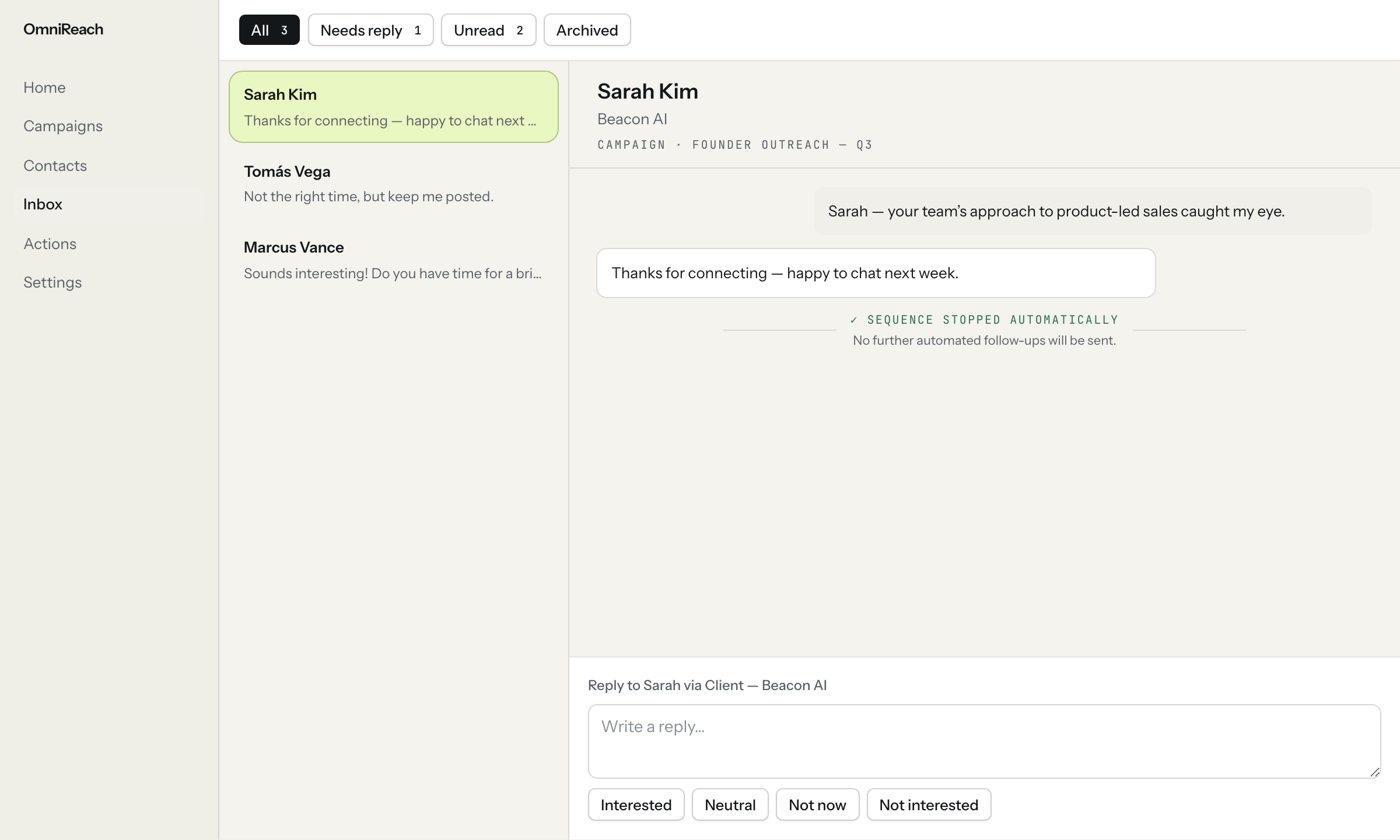
Inbox thread after a reply. The sequence stops automatically; you reply as yourself and label Interested, Neutral, Not now, or Not interested.
Accepts are not replies. "They accepted" can take hours to show — that is why sequences wait days on Accepted your invite?, not why Inbox feels slow.
LinkedIn can open a chat from the connection note before they are a connection. We still treat that as a reply and stop. Do not assume they are now a 1st-degree connection.
Inbox filters: All · Needs reply · Unread · Archived, plus LinkedIn / Email / account. Needs reply is the daily job (/inbox?filter=needs_reply). There are no tasks in Inbox.
Reply as yourself, from the same LinkedIn or email identity the campaign used, into the existing thread when we have it. Labels: Interested, Neutral, Not now, Not interested (applies workspace DNC for LinkedIn and email).
Opens are a pixel-based estimate. Bounces surface on the action. We do not show link clicks. Opens are a weak signal; replies are the one that matters.
Gotchas
- Send-from cannot change after create.
- Message with no Connection request upstream will not run.
- Skip on Review is campaign-only. Not interested is workspace-wide.
No LinkedIn connection?
Campaigns can run manually: copy the note and send from LinkedIn yourself. See Manual mode and the campaign Send manually tab (Copy note → Open profile → Hold · mark sent).
Open in the app
A live campaign with reviewed first touches
Open the matching screen in OmniReach.
Related how-tos