Knowledge/Getting started
Run an outbound campaign with OmniReach MCP
Let Claude Code, Cursor, or Codex find leads, prepare a draft, start it through OmniReach’s approval flow, and monitor the campaign.
·Updated ·6 min read
With OmniReach MCP, an agent can work with your contacts, Signals, campaigns, and analytics. The workflow below starts with a small lead search, adds work emails when needed, creates a draft sequence, and takes it through review, launch, and monitoring.
The same safety rules still apply. Creating a draft and starting a campaign are separate operations. Before paid enrichment runs, you see the maximum credit cost. Every send still follows sender caps, warm-up, suppression, and send windows.
What you will have at the end
- Claude Code, Cursor, or Codex connected to your OmniReach workspace
- A short lead set found from an ICP
- Work-email enrichment, if you choose to approve it
- A draft campaign you can inspect in the app
- A campaign started through a preview and approval
- Read-only checks for campaign status and analytics
Anyone with the workspace API key can read and change workspace data. They can also request both steps needed to start a campaign, so treat the key like a password.
Before you start
- An OmniReach owner or admin account
- At least one connected sender
- Claude Code, Cursor, or Codex installed
- A narrow ICP and a campaign goal
Lead search, email enrichment, Signals tools and email steps need the Full suite plan, and lead search and email enrichment also need Search enabled for the workspace. On Engagement, those tools return a plan error that names Full suite. Without those tools, you can bring your own list and use push_contacts, or add contacts while creating the draft.
1. Connect your MCP client
Open Settings → MCP.
- Choose Claude Code, Cursor, or Codex.
- Name the key after the client and computer.
- Copy the generated setup for your operating system.
- Run it in the shell that launches the client.
- Save the configuration and reload the client.
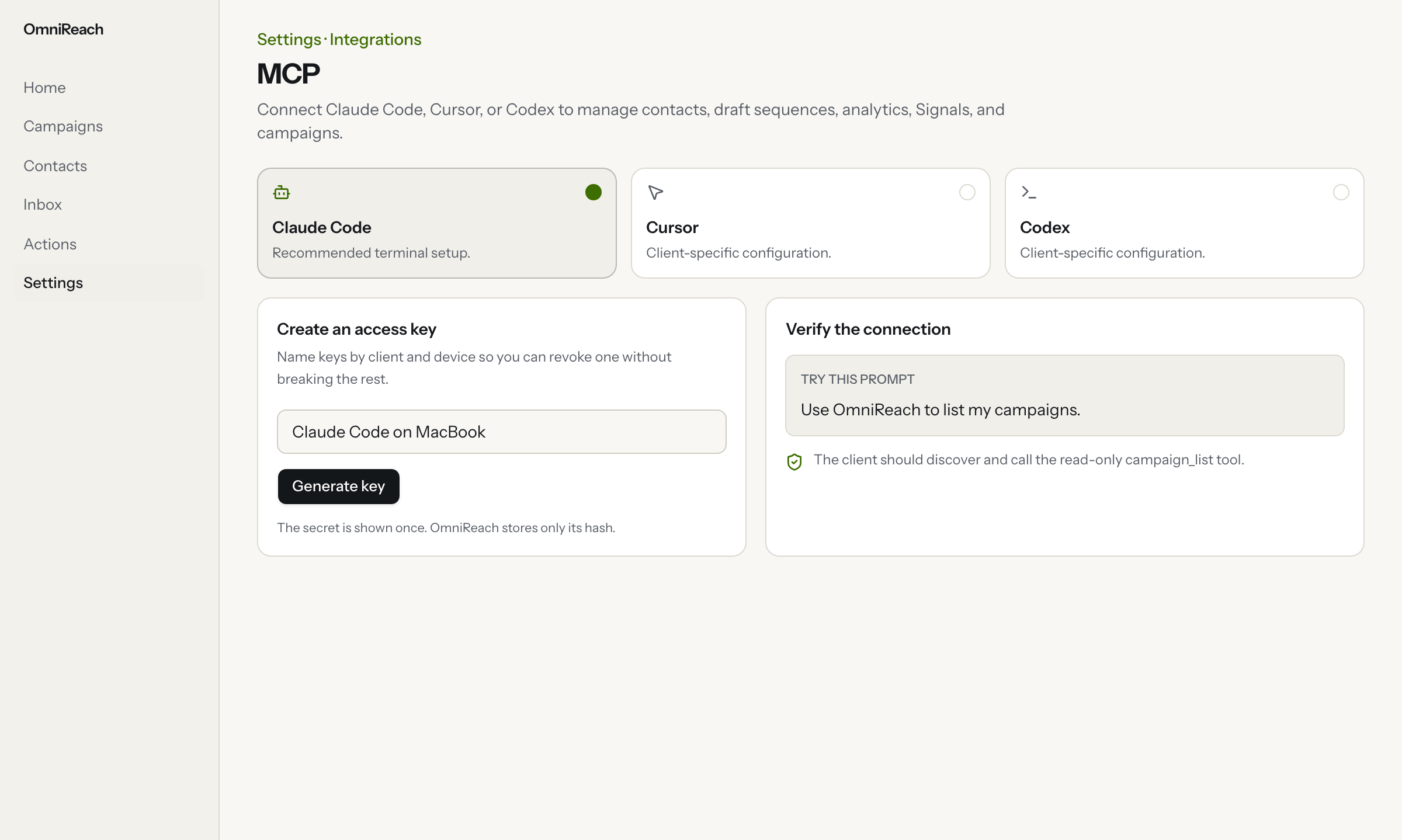
Settings → MCP gives you setup instructions for the selected client without putting the secret in project configuration.
The secret is shown once. The generated configuration refers to OMNIREACH_API_KEY instead of writing the secret into a project file.
Claude Desktop's native custom connector expects OAuth. OmniReach MCP currently uses workspace API keys, so use Claude Code instead.
2. Verify with a read-only request
Start a new agent session and ask:
Use OmniReach to list my campaigns. Do not change anything.
The client should use campaign_list and return campaigns from the connected workspace. If no OmniReach tools appear, check that the endpoint ends in /api/mcp, reload the MCP server, and start a new chat.
3. Find a small lead set
Give the agent a narrow ICP and a hard result limit:
Use OmniReach to find up to 10 heads of growth at B2B SaaS companies in the UK with 50 to 200 employees. Return the people and why each one matches. Do not create contacts or a campaign yet.
lead_search returns no more than 25 leads per call. Check the names, roles, companies, and LinkedIn URLs before moving on. If the matches are weak, narrow the ICP and search again.
If Search is not enabled, use LinkedIn URLs from your own CRM or CSV and ask the agent to preview push_contacts.
4. Enrich emails only after the cost preview
Email enrichment is split into two calls:
email_enrichment_previewvalidates up to 25 rows and returns the maximum spend from the shared monthly credit pool.email_enrichment_executeuses the one-time approval ID from that exact preview.
Ask:
Preview work-email enrichment for these leads. Tell me the maximum credit spend and wait for my confirmation before using any credits.
Check the count, then approve the batch or make it smaller. The agent must wait for that confirmation before running the enrichment. It skips people who already have an email.
Each result uses the ID from its input row, so the agent can match addresses to people without depending on row order.
5. Preview, then create the draft
Ask the agent to prepare a short campaign without starting it:
Preview a campaign named "UK SaaS growth leaders" for these approved people. Use the conversations goal and a concise connection note. Show me the planned steps, required sender, contacts, and warnings. Do not create or start it yet.
The agent calls create_sequence with preview enabled. This does not change the workspace. It returns a deterministic plan hash, but no review URL because the draft does not exist yet.
After reviewing the plan, ask:
Create that draft exactly as previewed. Use an idempotency key. Do not start it.
The new campaign remains a draft, and create_sequence does not send anything. Open the returned review link in OmniReach and check the sender, steps, copy, people, and flags.
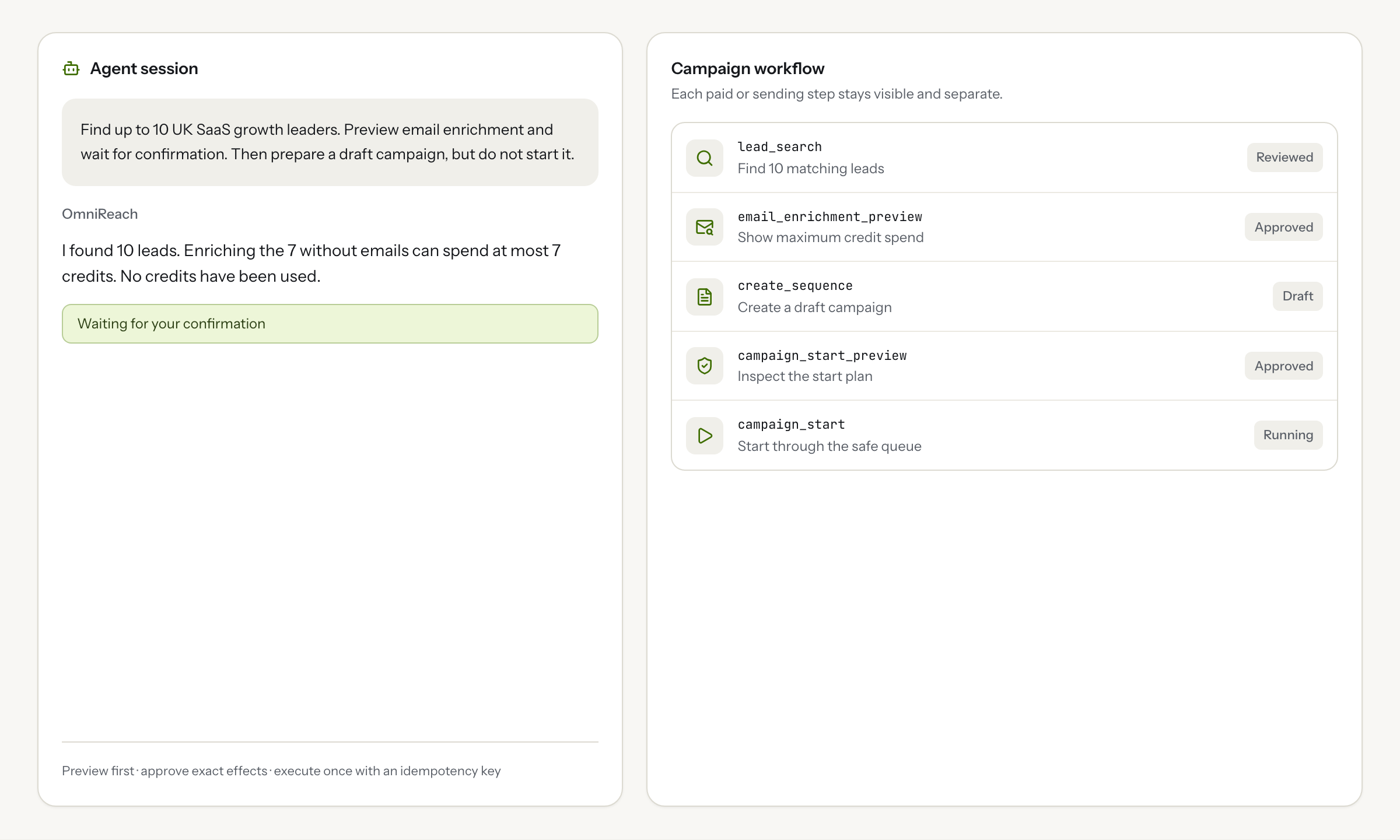
The agent prepares the campaign, while draft review and campaign start remain separate steps.
6. Start through the campaign approval flow
When the draft is ready, ask:
Preview starting "UK SaaS growth leaders." Show me the affected people, warnings, and planned queue work. Wait for my approval before starting it.
The agent calls campaign_start_preview. Check the plan and approval ID before approving that exact start:
Start that campaign with the approval ID from the preview. Use an idempotency key.
The agent calls campaign_start. The approval ID works once and is tied to the saved campaign state. If the campaign changes after the preview, request a new one rather than reusing the old approval.
Another OmniReach user does not need to approve this step. Whoever holds the API key can request both the preview and the execution, so keep the key private.
7. Monitor without changing the campaign
Use read-only prompts for the daily check:
Get the current status of "UK SaaS growth leaders" and summarize sent, accepted, replied, failed, and held counts. Do not change anything.
Fetch workspace analytics and explain any recent failures with their remediation. Do not retry or skip actions.
These prompts use campaign_get and get_analytics. Ask for audit_log_search when you need the change history.
Use campaign_pause to stop new work temporarily, then campaign_resume when you are ready. campaign_stop is permanent. State that consequence in the prompt and check the campaign before approving it.
Prompt rules that prevent mistakes
- Say preview and wait for my confirmation before paid enrichment or campaign start.
- Start with 10 to 25 people rather than an unbounded list.
- Ask the agent to use an idempotency key for mutations.
- Check names, LinkedIn URLs, the sender, sequence copy, and warnings in the app.
- Never paste the API key into chat, source files, screenshots, or committed configuration.
- Revoke the key in Settings → MCP if a device or file containing it is exposed.
- Respect
Retry-Afteron rate limits instead of reconnecting repeatedly.
Gotchas
- Search and enrichment tools may be absent when Search is not enabled.
- Owners and admins can use paid prospecting and enrichment tools; members cannot.
push_contactsrequires a LinkedIn URL and accepts at most 100 contacts per request.- Enrolling people into a running campaign can start them. The preview reports that effect.
- A draft sequence does not start until
campaign_start_previewandcampaign_startcomplete. - Preview approval IDs are one-time and state-bound.
- MCP keys expire and can also be revoked. Create a new one if the client starts returning Unauthorized.
- Campaign sending still follows daily caps, warm-up, send windows, duplicate protection, and workspace DNC.
For the same campaign loop in the app, read Launch your first campaign. For setup problems, open Settings → MCP and use If something does not connect.
Open in the app
An MCP client connected to OmniReach and a reviewed campaign running through the safe sending queue
Open the matching screen in OmniReach.
Related how-tos